
Use a credit note to give a customer store credit from a return. This guide shows cashiers and supervisors how to issue credit in the Oasis POS web app, apply it to a later checkout and check what is left.
In this guide
- Open the original sale
- Save the return and start the credit note
- Issue the credit and give the customer the code
- Apply credit on the next checkout
- Check the credit note balance
- Frequently asked questions
- Related guides
Open the original sale
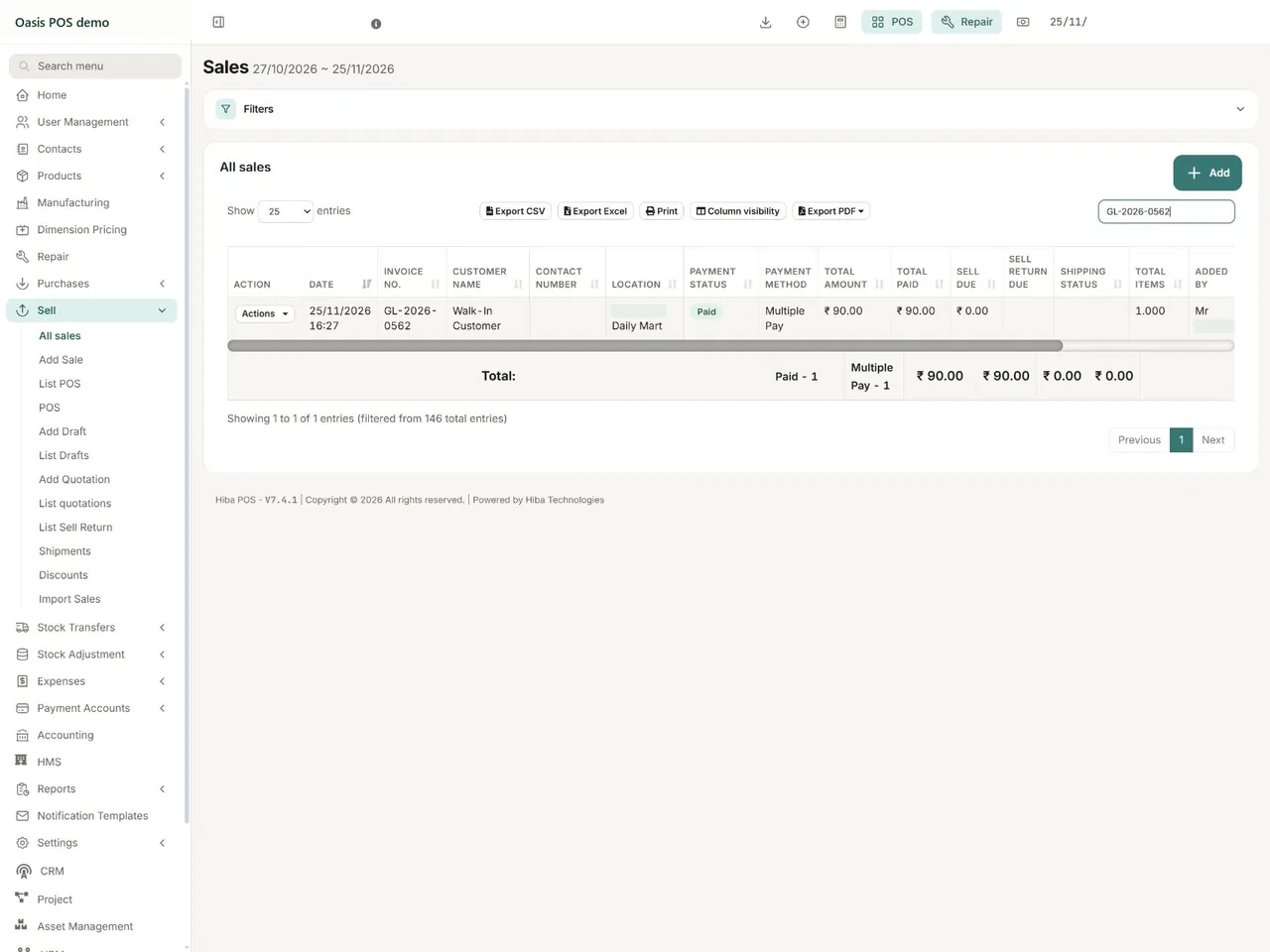
Go to Sell › All sales and find the original invoice. Check the invoice number and customer. On that row, choose Actions › Sell Return.
Save the return and start the credit note
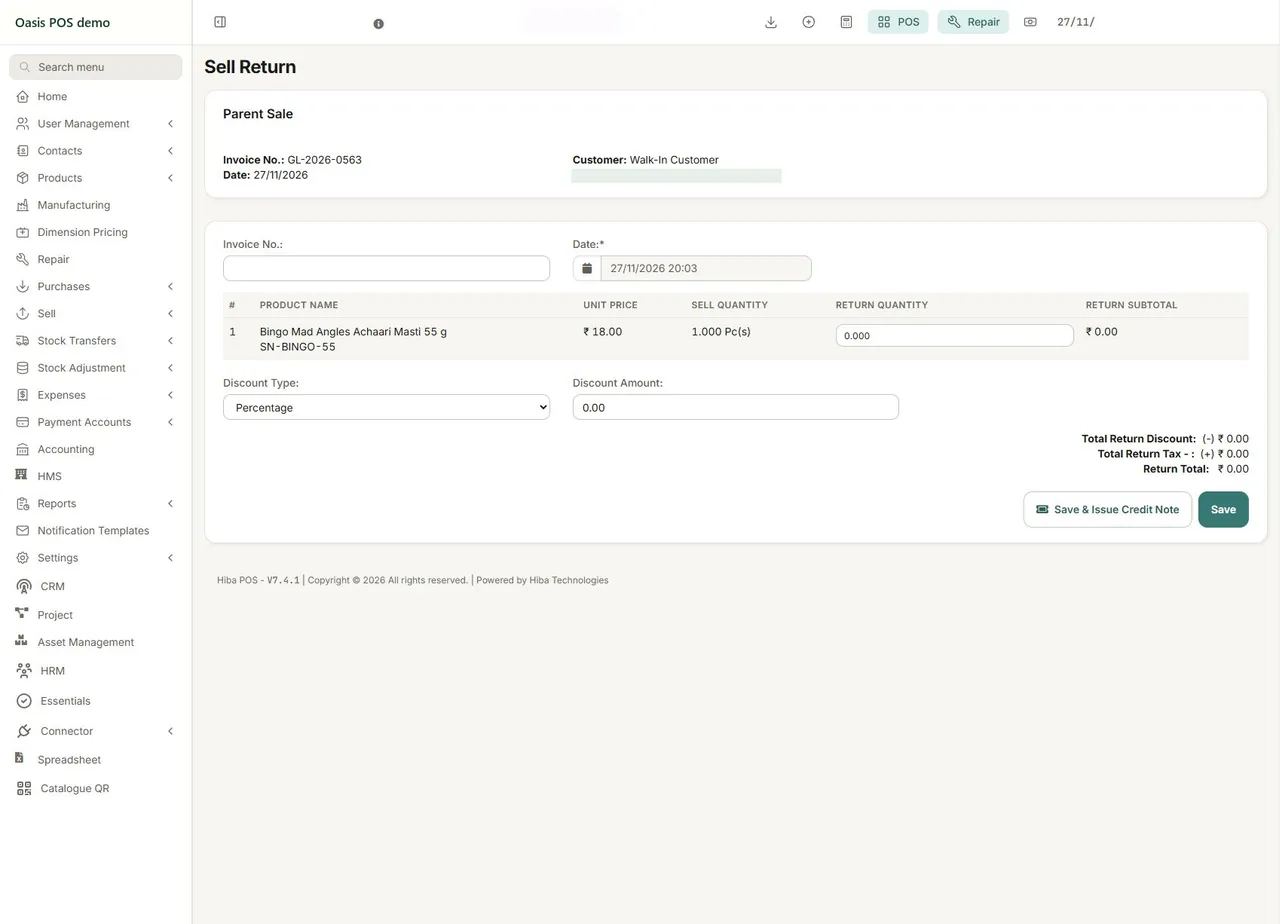
Enter the returned units in Return Quantity and review Return Total. If the customer wants store credit, click Save & Issue Credit Note.
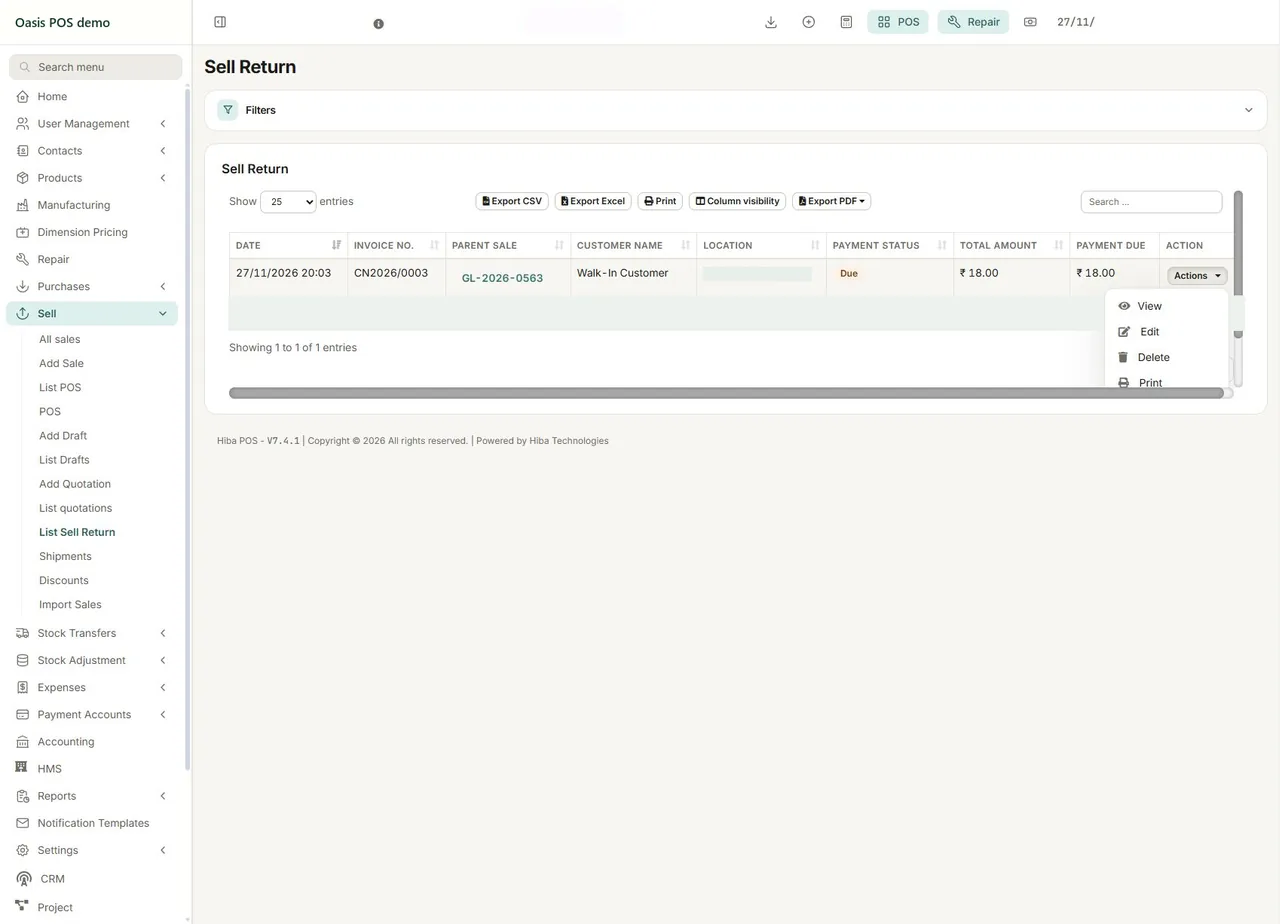
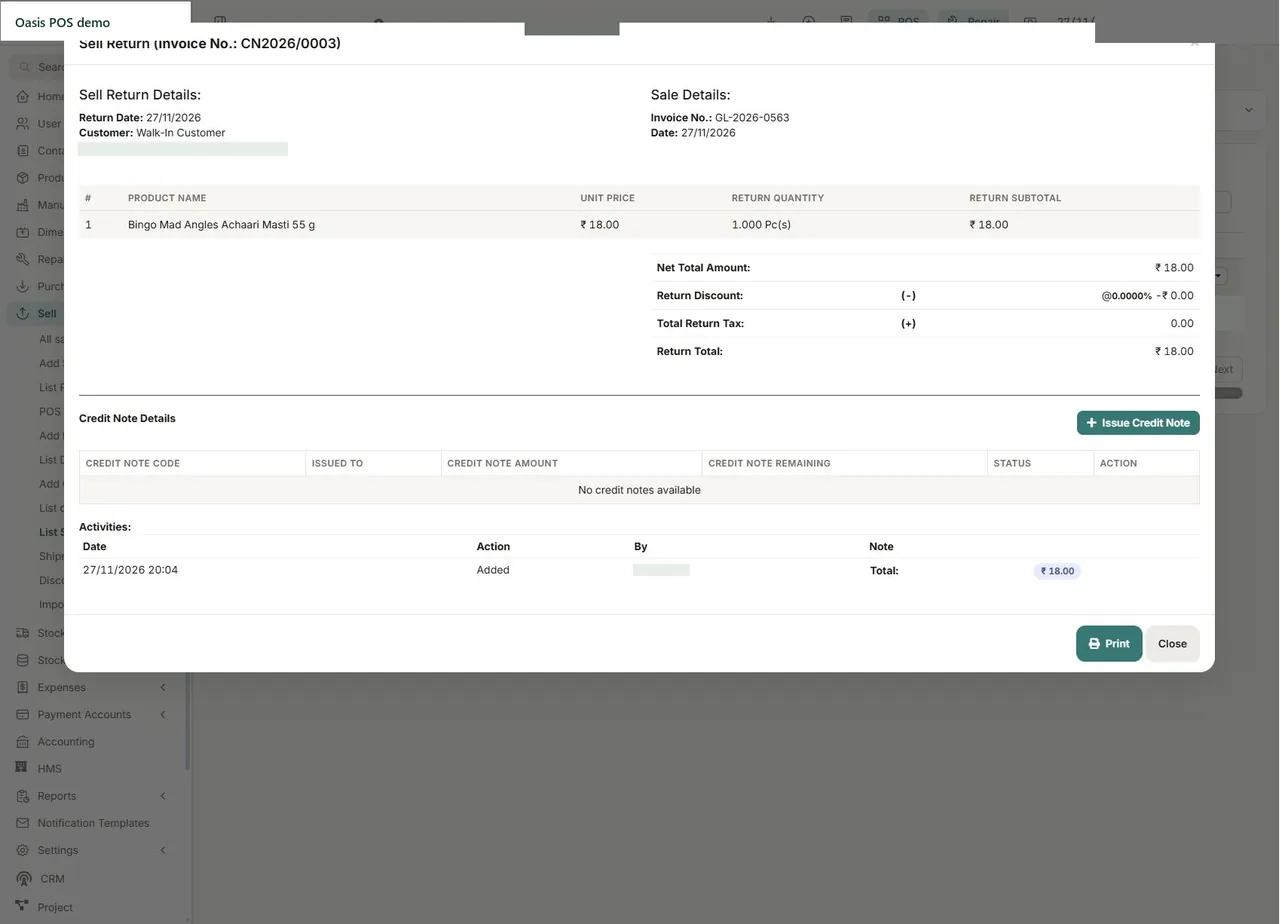
If the return is already saved, go to Sell › List Sell Return, match the Parent Sale, then choose Actions › View to open Credit Note Details.
Issue the credit and give the customer the code
-
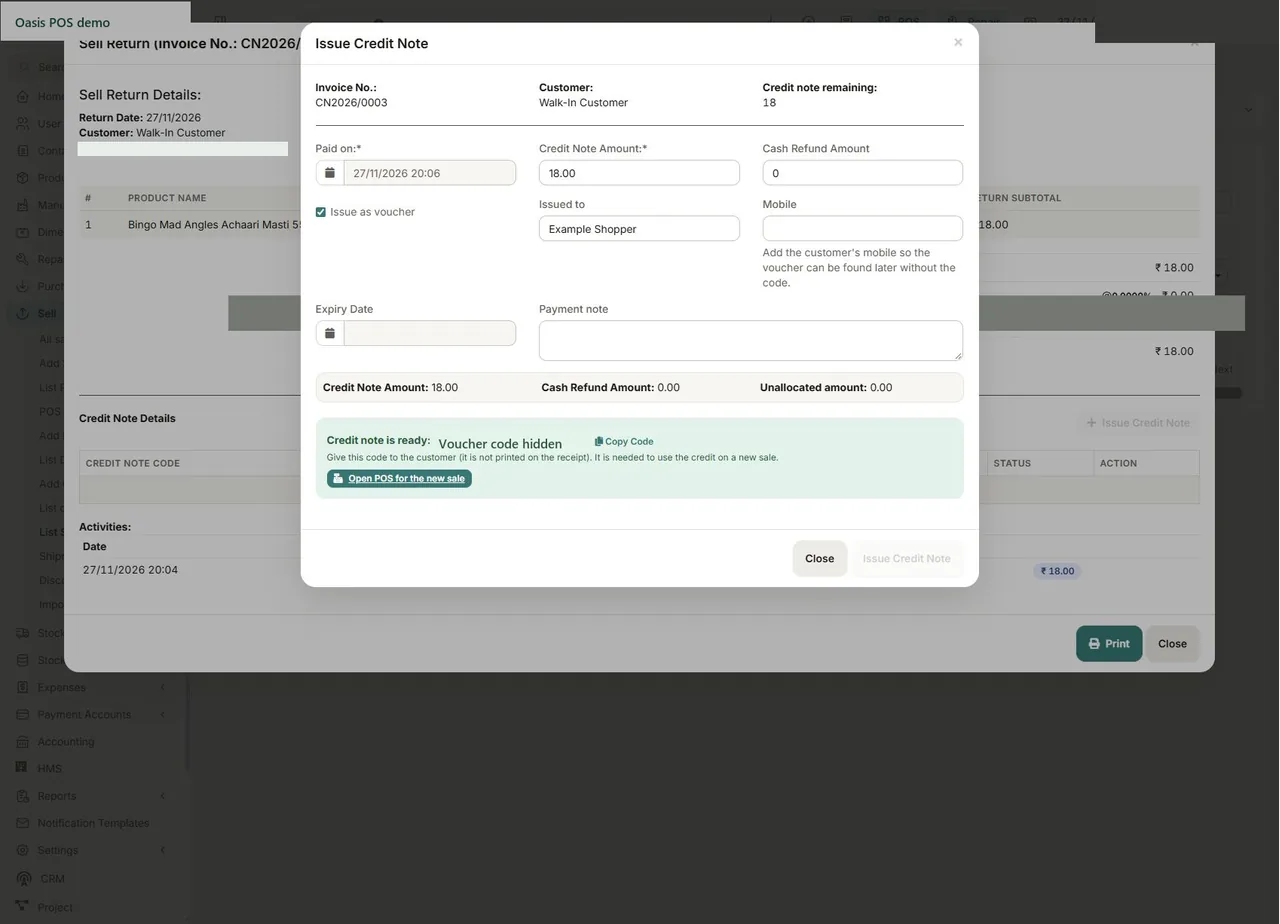
Open Issue Credit Note and check the Credit Note Amount. For a walk-in customer, keep Issue as voucher selected. You can enter Issued to and, if your shop collects it, a mobile number for later lookup. To link credit to a named customer on the original invoice, clear Issue as voucher.
-
Leave Cash Refund Amount at zero for a credit-only return. If your shop is giving back part of the amount immediately, enter the refund amount and select the method actually used. Review the credit, refund and Unallocated amount, then click Issue Credit Note.
Check the ₹18 credit amount and issue the walk-in voucher.Open full size -
When Credit note is ready appears, use Copy Code and give the voucher code to the customer. Keep the code with the return record. It is separate from the printed return receipt. The demo code is hidden in the recording.
Use Copy Code to hand over the voucher number.Open full size
Apply credit on the next checkout
-
Open POS and add the items for the new bill. Use the same named customer for contact credit. Open Multiple Pay, then click Apply Credit Note in the payment dialog.
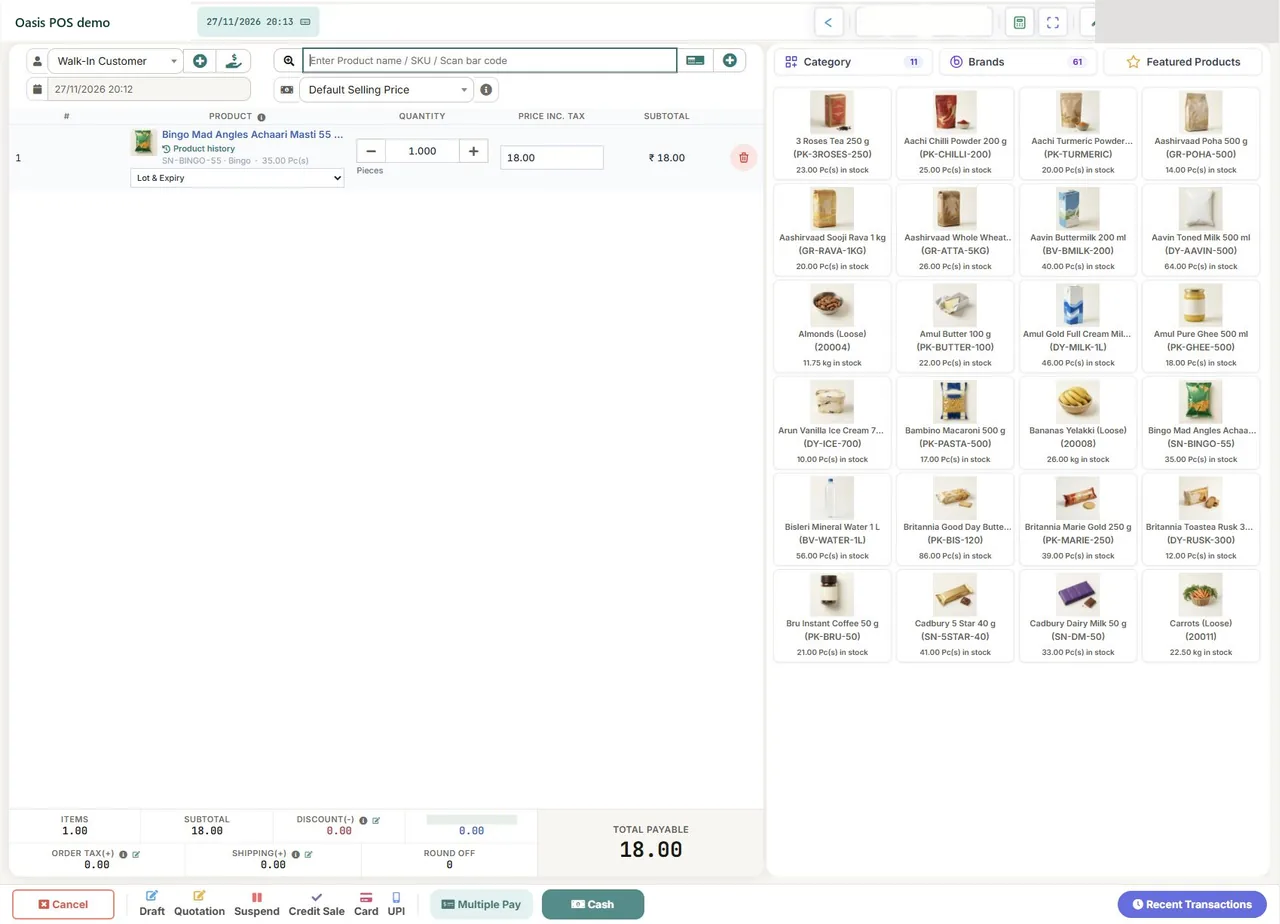
From Multiple Pay, open Apply Credit Note.Open full size -
Use Credit note code and Lookup Credit Note for a walk-in voucher. For a named customer, choose from Available credit notes if the matching credit is listed. Check Credit note remaining before continuing.
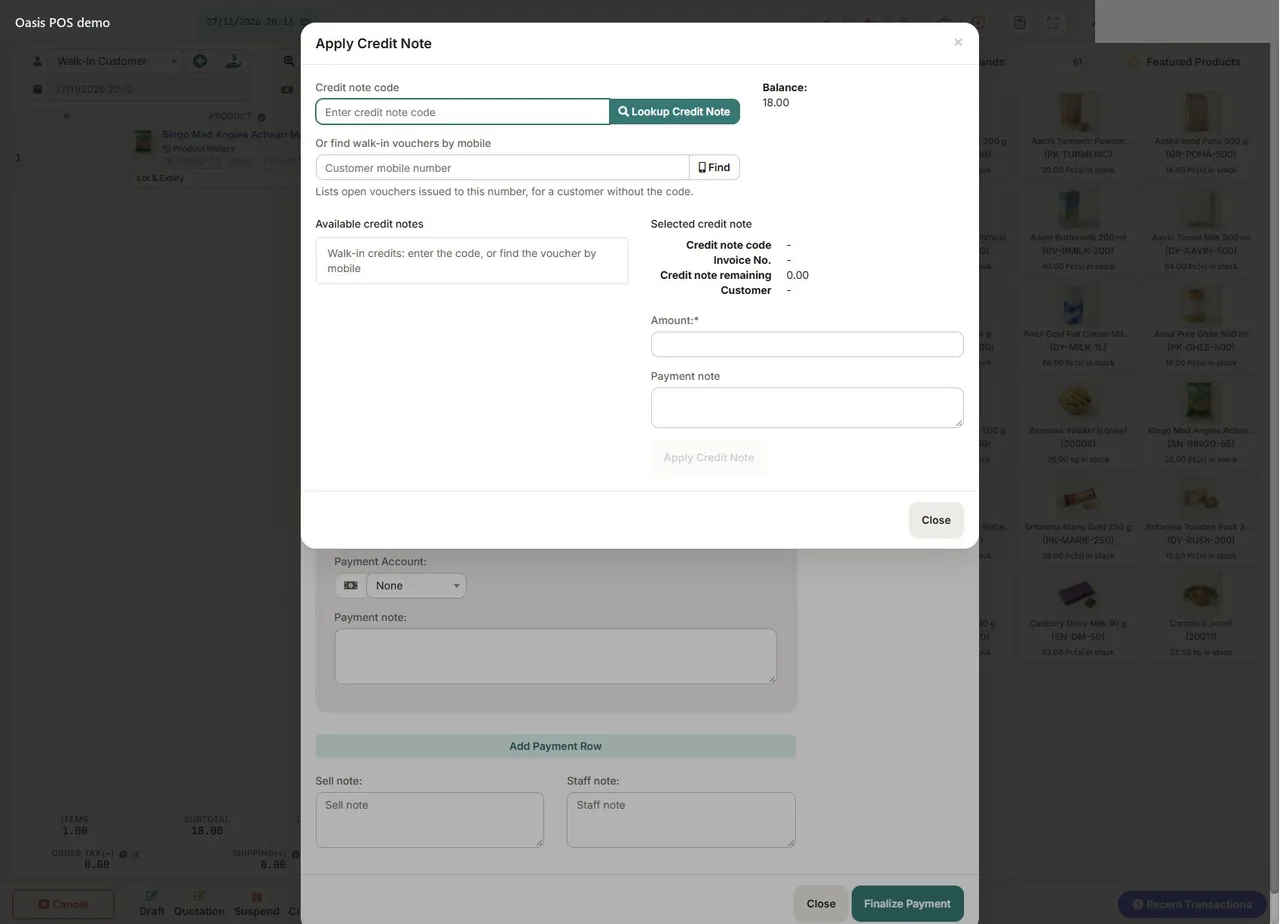
Look up the voucher and check Credit note remaining.Open full size -
Enter the credit Amount to use, up to the lesser of the remaining credit and the bill balance. Click Apply Credit Note and confirm that the credit appears in Payment.
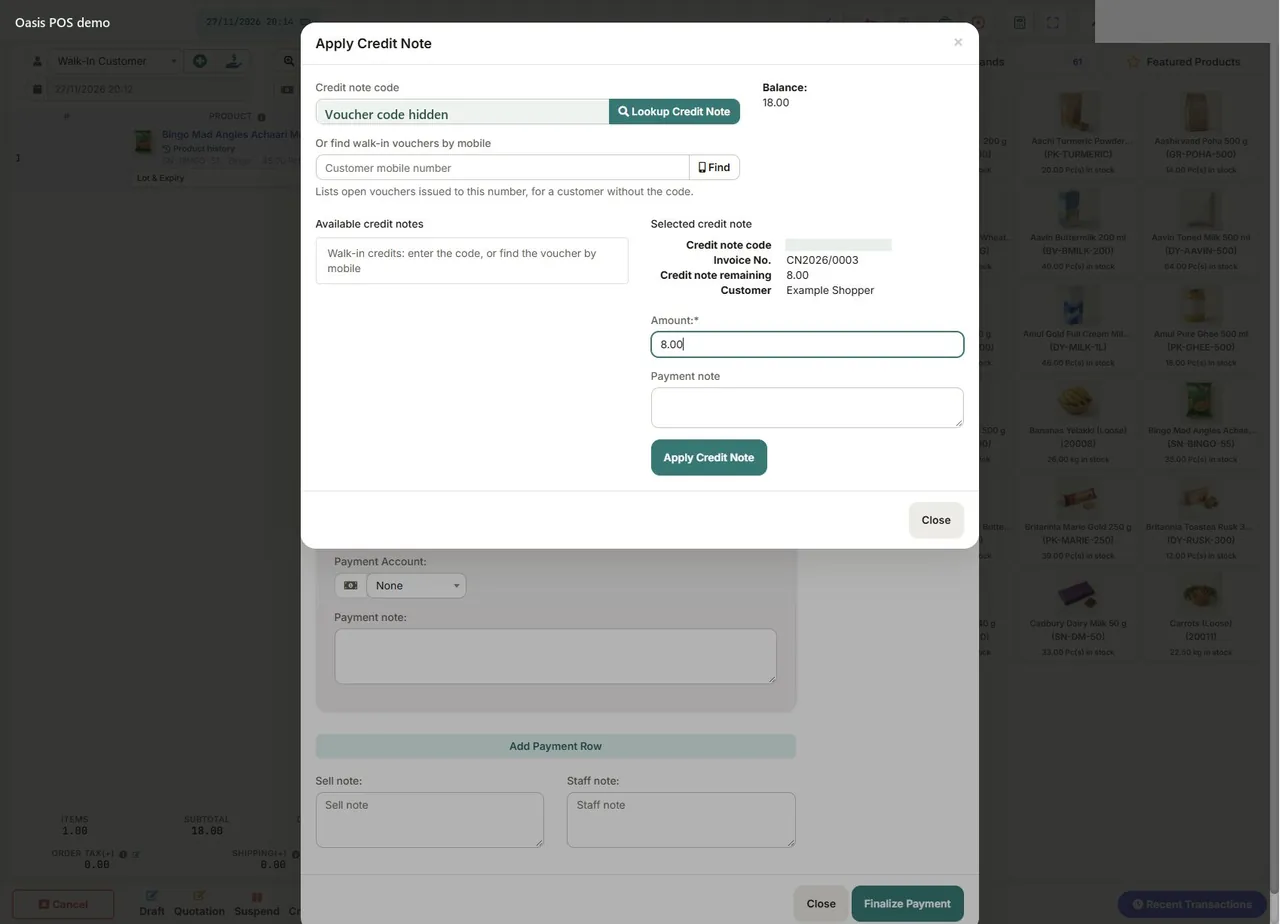
Apply the ₹8 remaining credit to the new bill.Open full size -
Check the payment amount still owed. If the customer pays the rest by cash, UPI or another enabled method, record that amount in the payment row. Check Total Paying and click Finalize Payment.
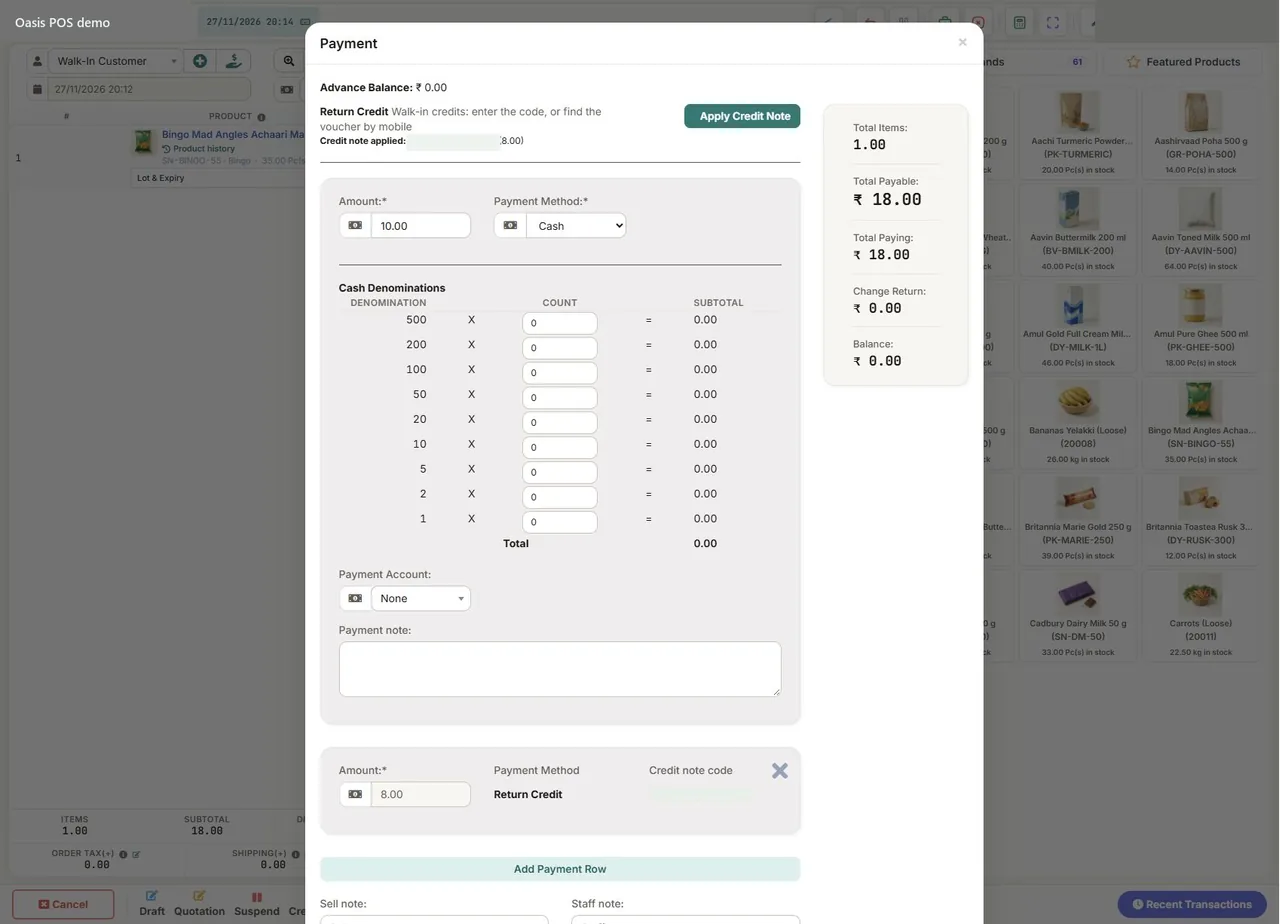
Record ₹10 in cash alongside the ₹8 credit and finalize the ₹18 bill.Open full size
Example. A customer receives ₹18 in store credit. After using ₹10 on one sale, they have ₹8 left. The walkthrough applies that ₹8 to another ₹18 bill and takes the remaining ₹10 in cash.
Check the credit note balance
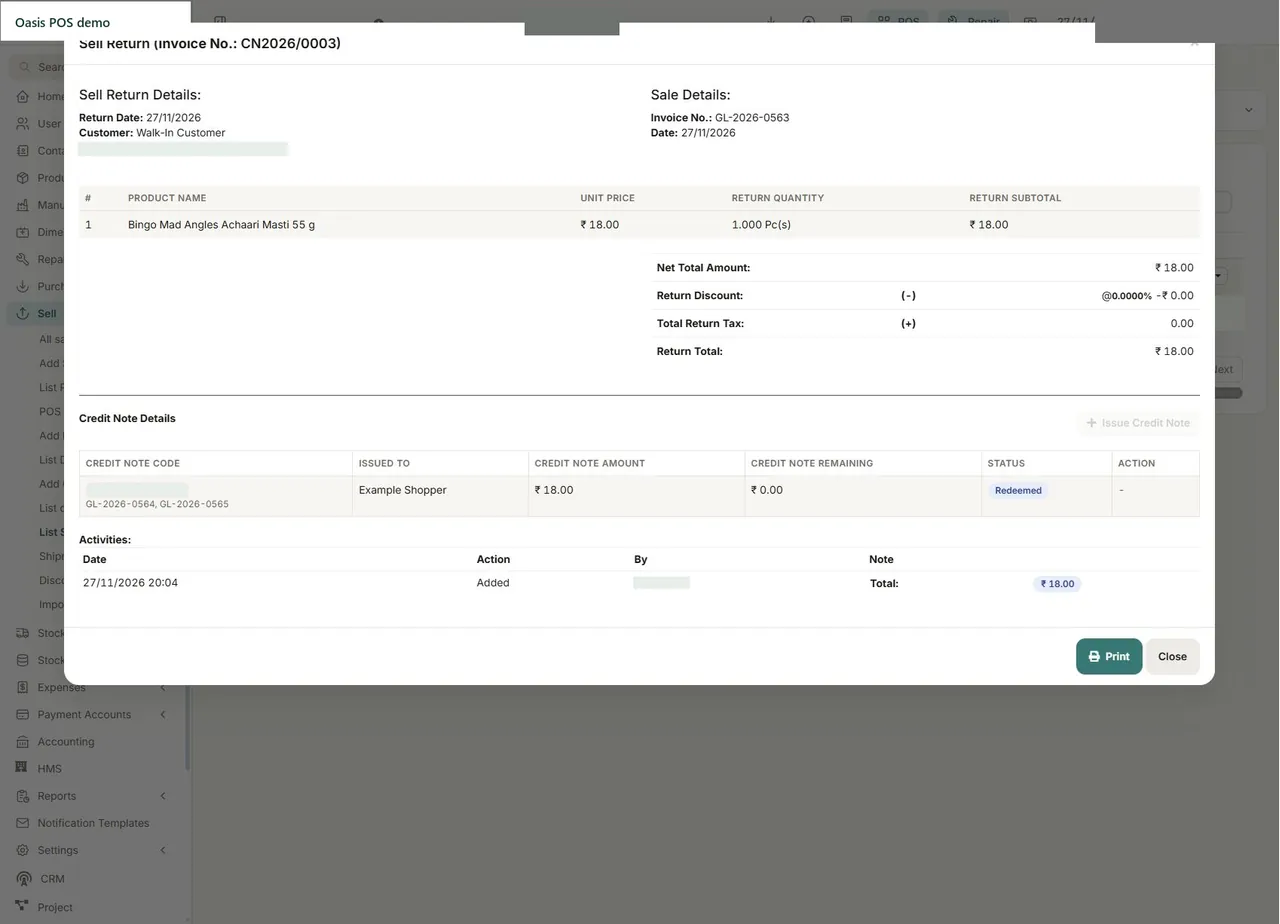
Go to Sell › List Sell Return and open Actions › View on the original return. Under Credit Note Details, check Credit note remaining and Status. After part of the credit is used, the status is Partial. At zero remaining, it is Redeemed.
Frequently asked questions
What if a walk-in customer lost the voucher code?
If a mobile number was recorded with the voucher, open Apply Credit Note and use Or find walk-in vouchers by mobile. Select the matching voucher from the results and check its balance before applying it.
Why is Issue Credit Note unavailable?
Open the saved return and check Credit Note Details for an existing open note. Check whether the return has an unsettled balance and whether your role can access the return. Ask a supervisor to review the entry before issuing more credit.
Can I cancel a credit note?
An unused credit note may show Cancel under Credit Note Details. If any credit has been used, ask a supervisor to review its linked sales before making a correction.
How do I print the return document?
Open Sell › List Sell Return › Actions › Print if receipt printing is set up for the location. Give any voucher code to the customer separately using Copy Code.