
Use the Oasis POS web app to record the opening float, compare counted cash with the expected amount and hand over the shift. It’s for cashiers and supervisors.
In this guide
- Open the register with the actual float
- Compare the till and payment totals
- Save the closing count and review the report
- Frequently asked questions
- Related guides
Open the register with the actual float
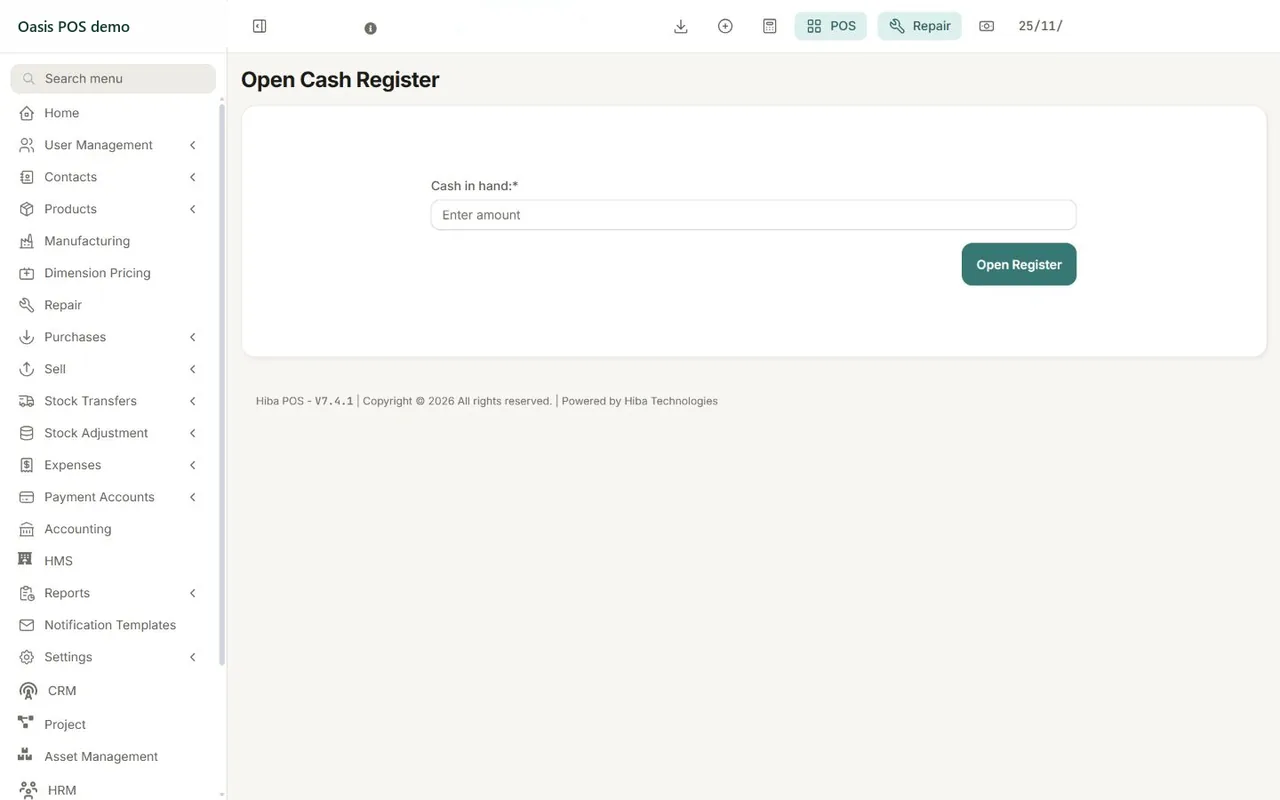
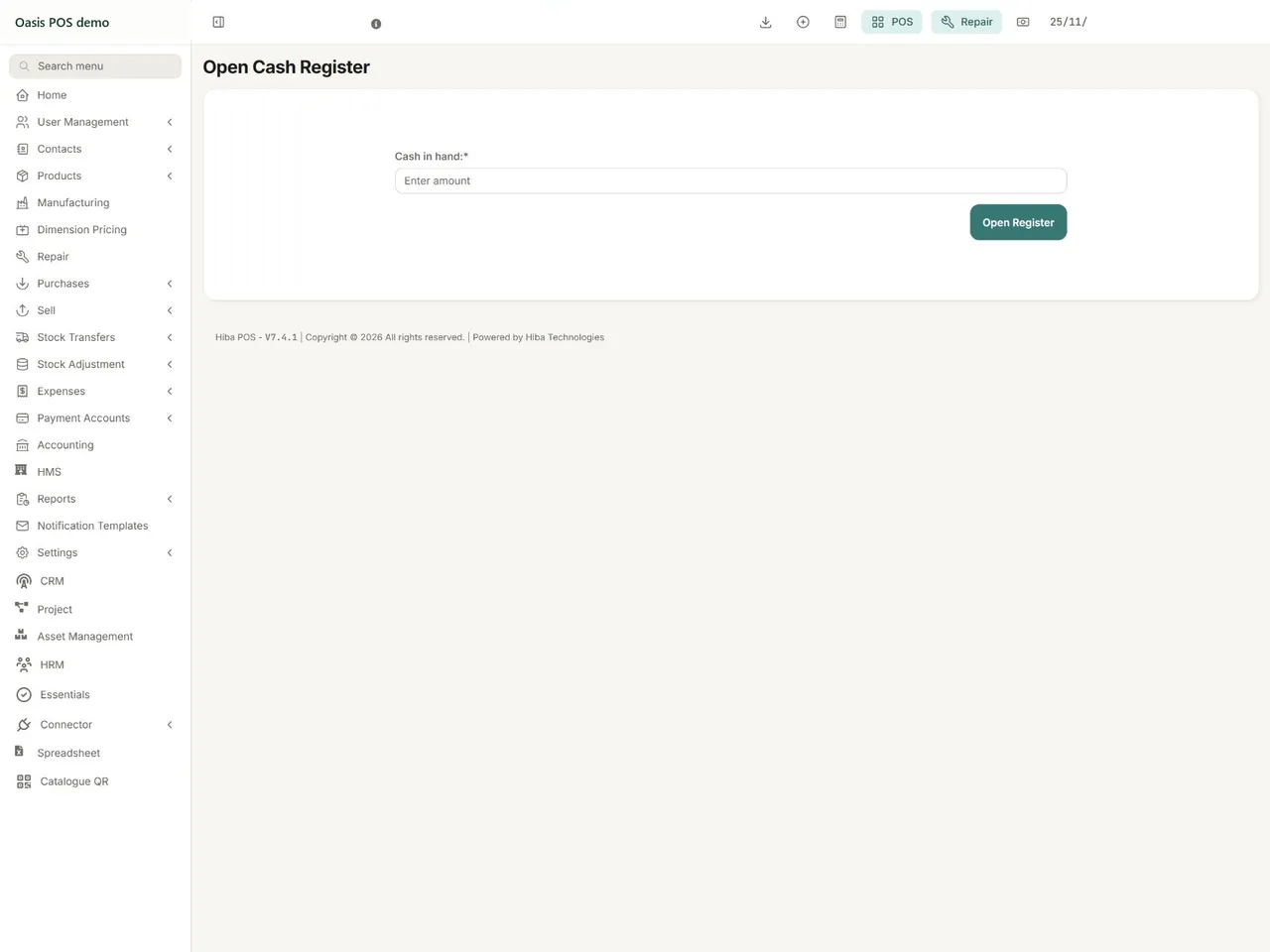
Click POS. On Open Cash Register, enter the opening float in Cash in hand, choose the Business Location, and click Open Register. Use the staff login and location assigned to the till.
Compare the till and payment totals
-
When the shift is ready to close, click the Close Register icon in the POS top bar. Find Expected Cash in Drawer and review the payment breakdown. Count the actual notes and coins.
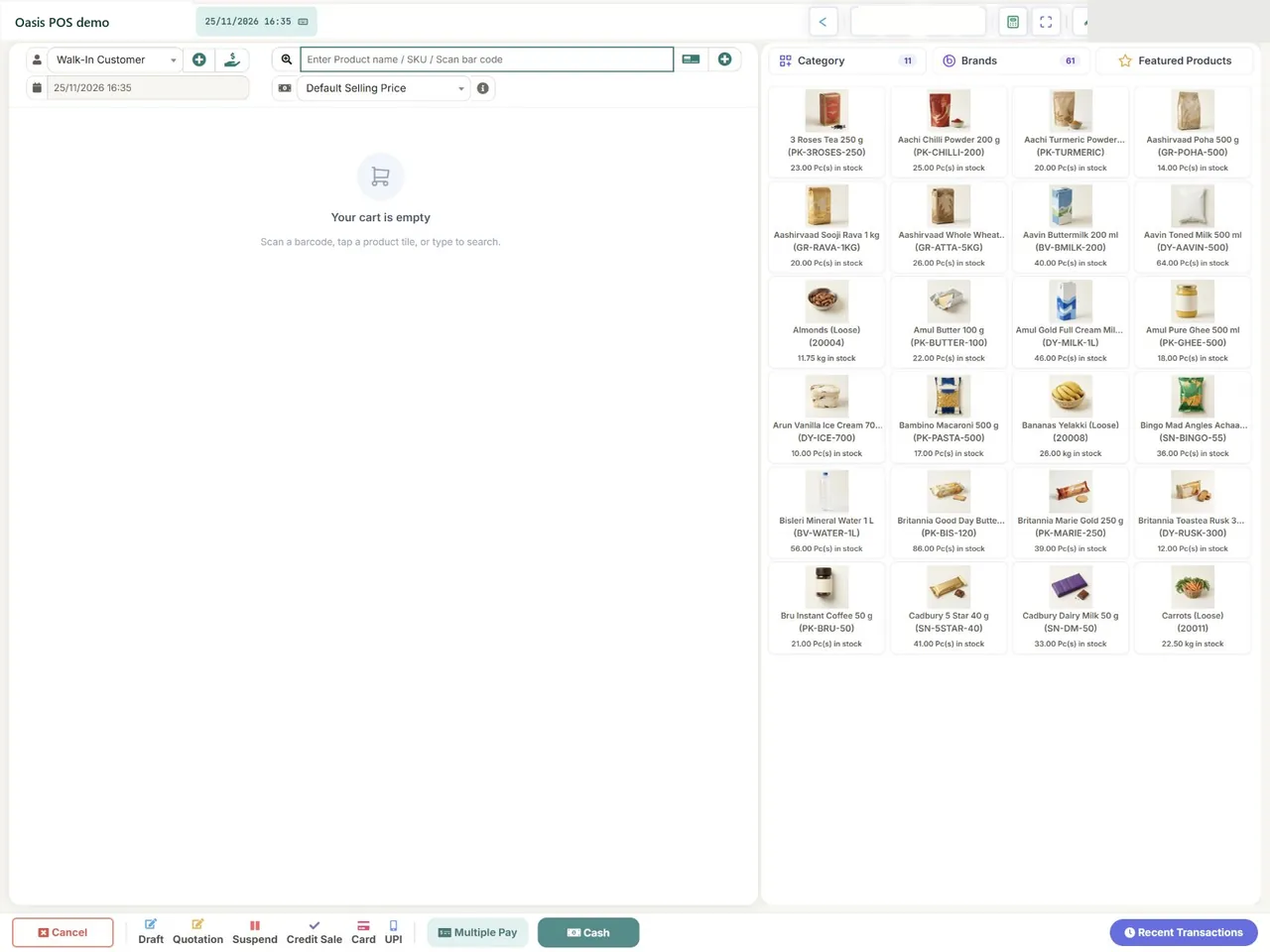
Open the Close Register breakdown from POS.Open full size 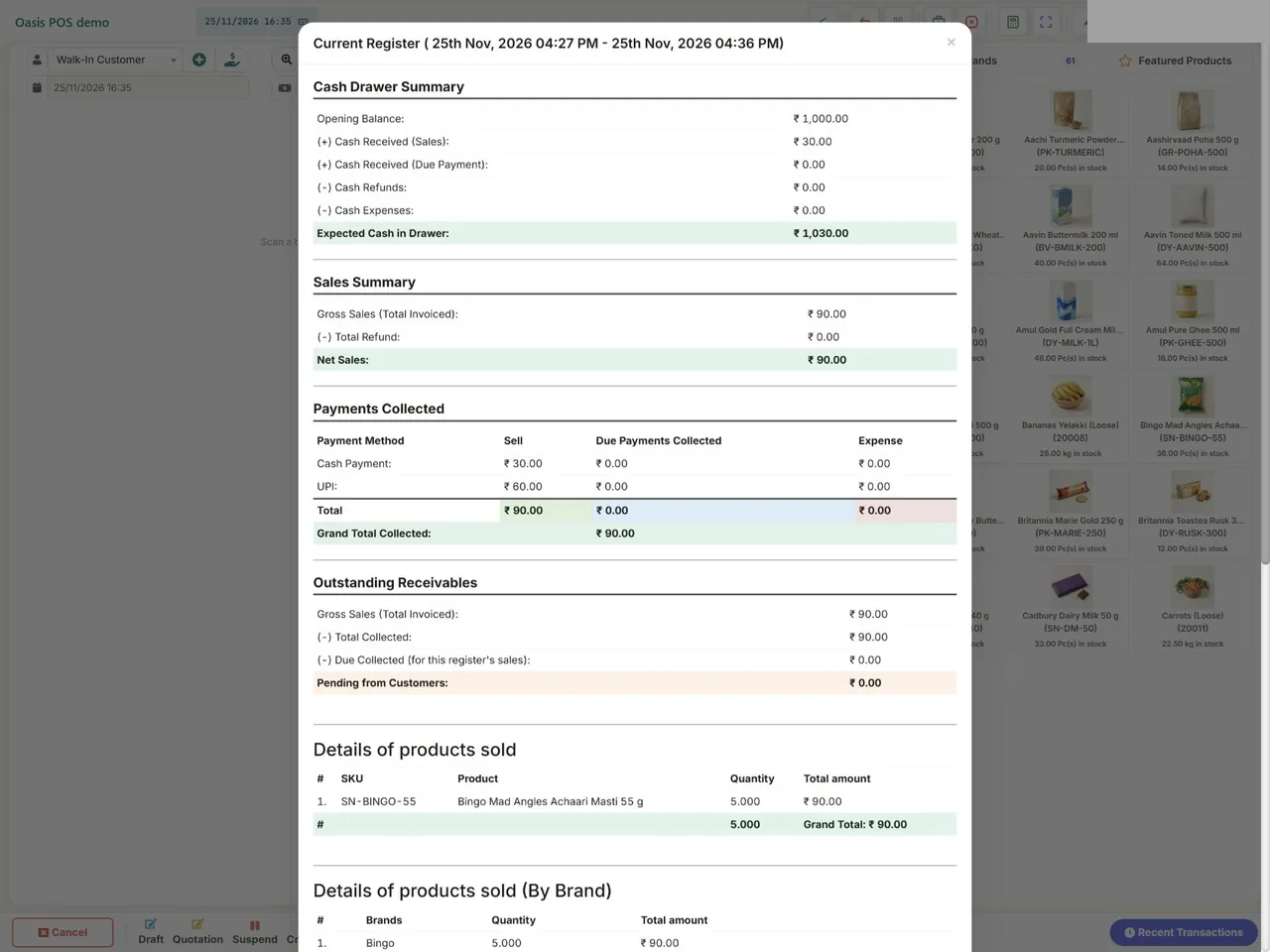
Find the expected drawer cash in the breakdown.Open full size -
Compare UPI or card amounts with the corresponding payment app or card terminal record. Cash in the drawer and digital collections have different totals. Investigate any difference before the handover.
Example with a split sale and cash refund
| Item | Amount |
|---|---|
| Opening cash | ₹1,000 |
| Cash portion of a ₹90 bill | +₹30 |
| UPI portion of that bill | ₹60 in UPI collections |
| Expected cash shown in the register | ₹1,030 |
| Cash refund recorded under List Sell Return | −₹18 |
| Actual cash counted | ₹1,012 |
In this example, the ₹18 refund appeared under Sell › List Sell Return and was outside the register’s expected cash. The separate refund record explains the ₹18 difference. When your numbers differ, recount the drawer and check payments, change, refunds and cash expenses before closing.
Save the closing count and review the report
1. Enter the amount you counted
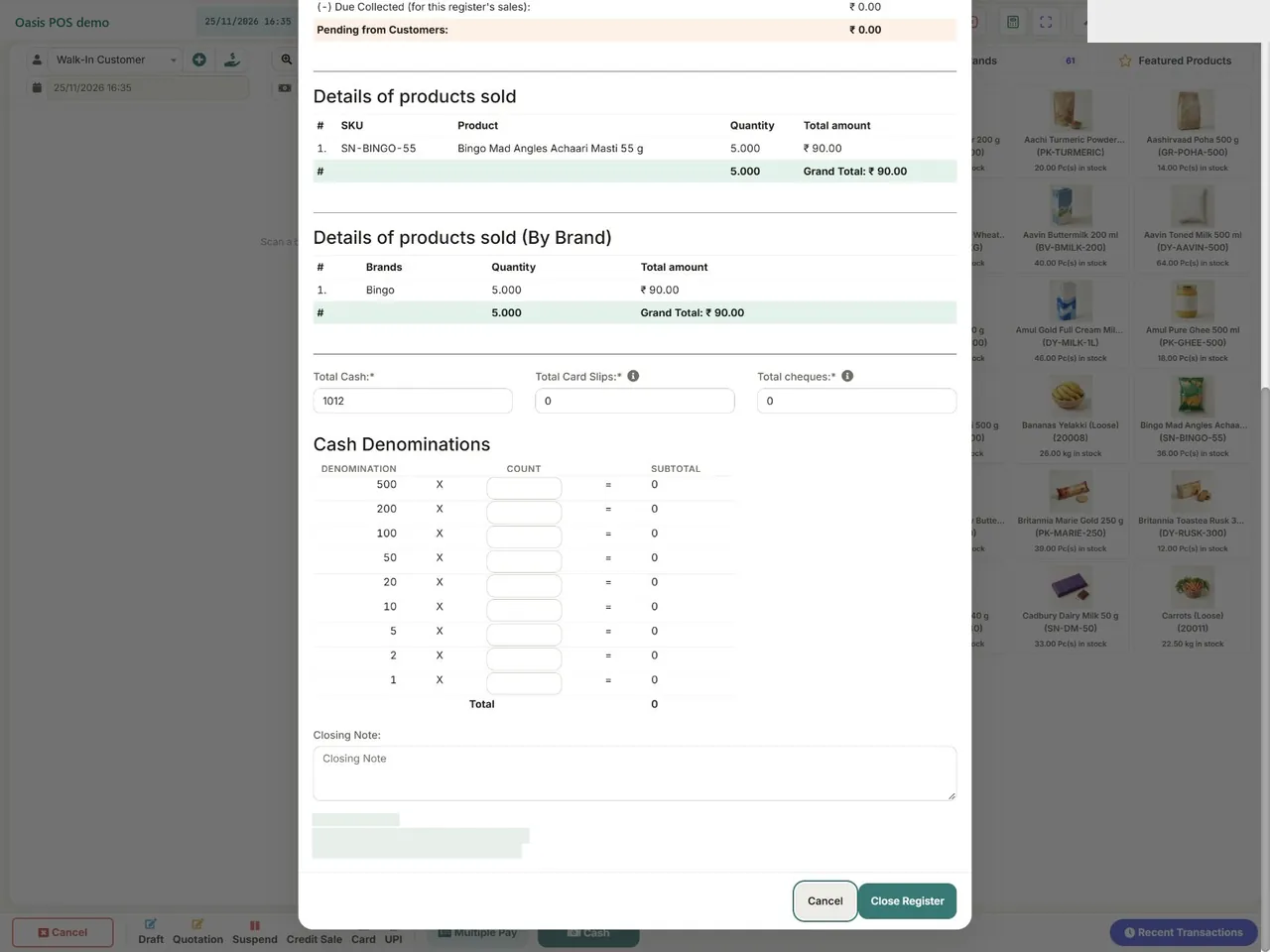
Enter the counted cash in Total Cash, which can be prefilled with expected cash. Enter the actual number of Total Card Slips and Total Cheques where required.
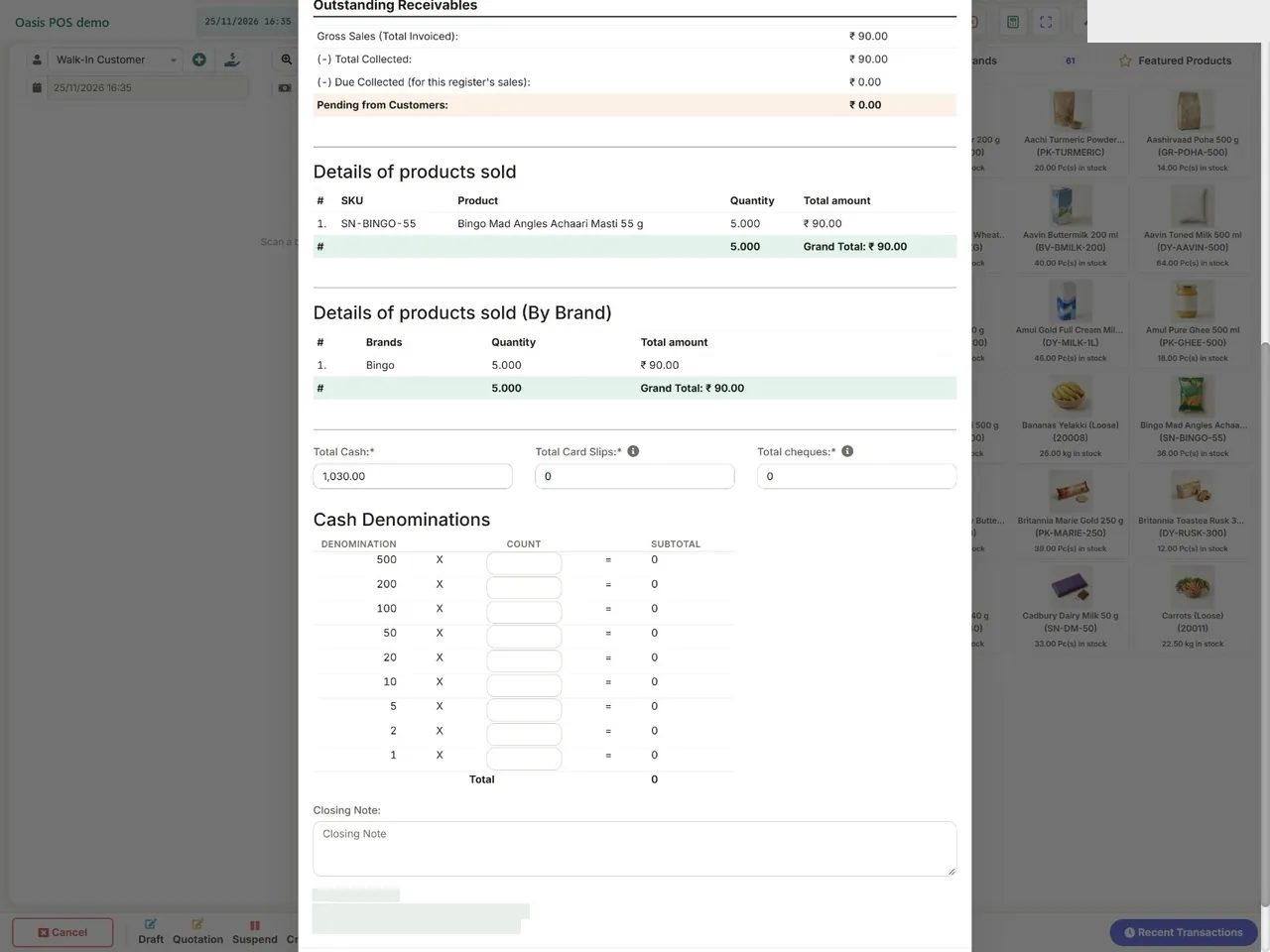
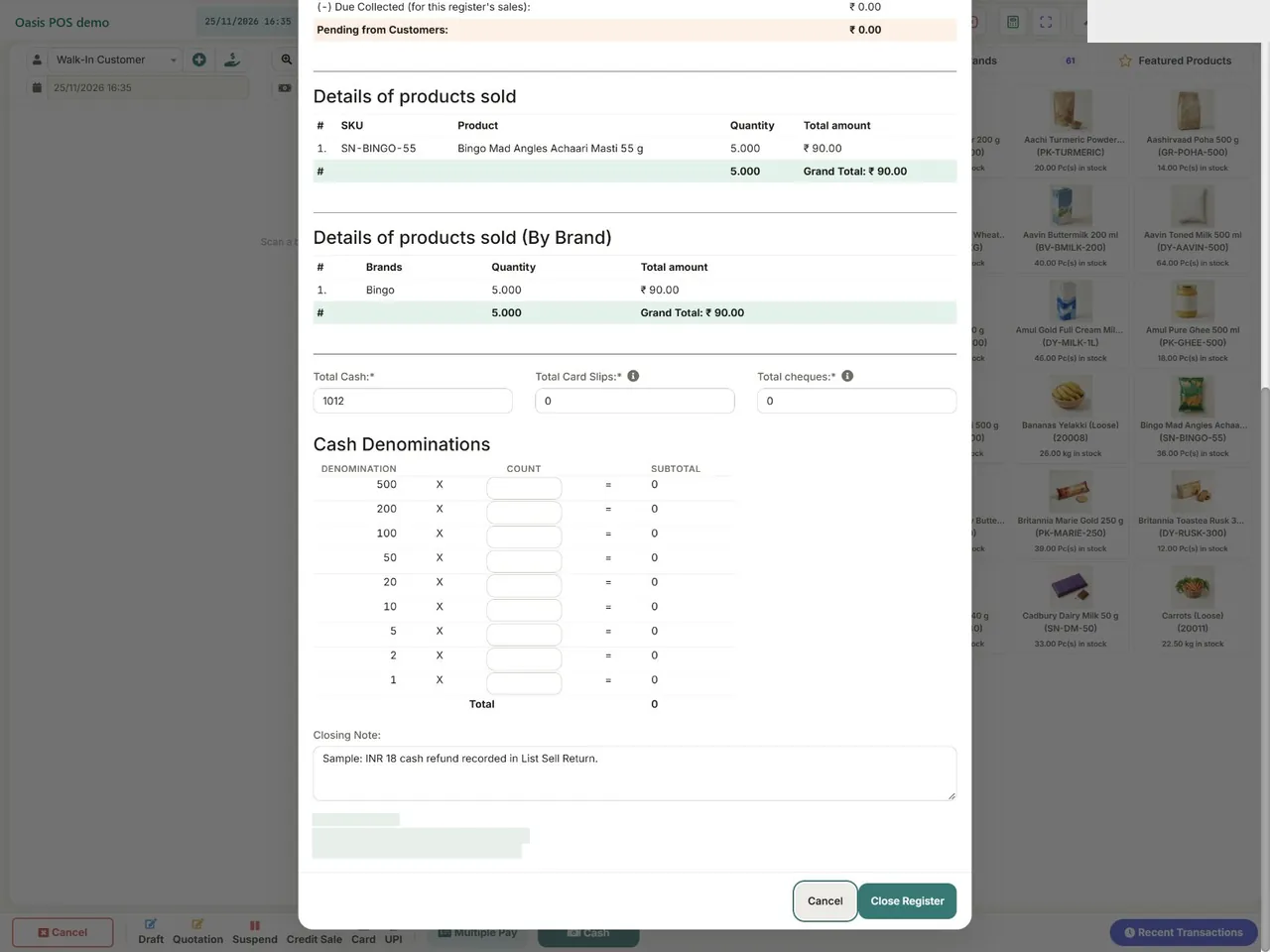
Use Closing Note to explain a difference, for example “₹18 cash refund recorded under List Sell Return.” Click Close Register to save the count.
2. Find the closed register
Go to Reports › Register Report. Filter by the shift date and cashier where available. Open the matching register’s details. Use Reports › Sell Payment Report to look up customer payment rows by payment method if you need to trace a discrepancy.
Frequently asked questions
Why does cash differ from sales?
The drawer includes the opening float and tracked cash movements. UPI and card are separate from the drawer. Review the register breakdown and the actual payment methods recorded on the bills.
Why can’t I see a bill in the Register Report?
Check the user, location, time range and entry method. A direct bill created under Sell › Add Sale can be found in Sell › All sales and may be outside that POS register’s totals.
What if I can’t close the register?
Check that you’re using the assigned login and that the cash, card-slip and cheque fields are filled where required. Ask a supervisor who has register access to help with the close.