
Use this guide to enter a supplier bill, put delivered stock into the right branch and check the quantity received. It’s for stock staff and owners using the Oasis POS web app.
In this guide
- Enter the supplier delivery
- Confirm the stock reached the right branch
- Frequently asked questions
- Related guides
Enter the supplier delivery
Count the delivered packs and have the supplier bill open. Check which location physically received the goods.
1. Open Add Purchase and choose the supplier and branch
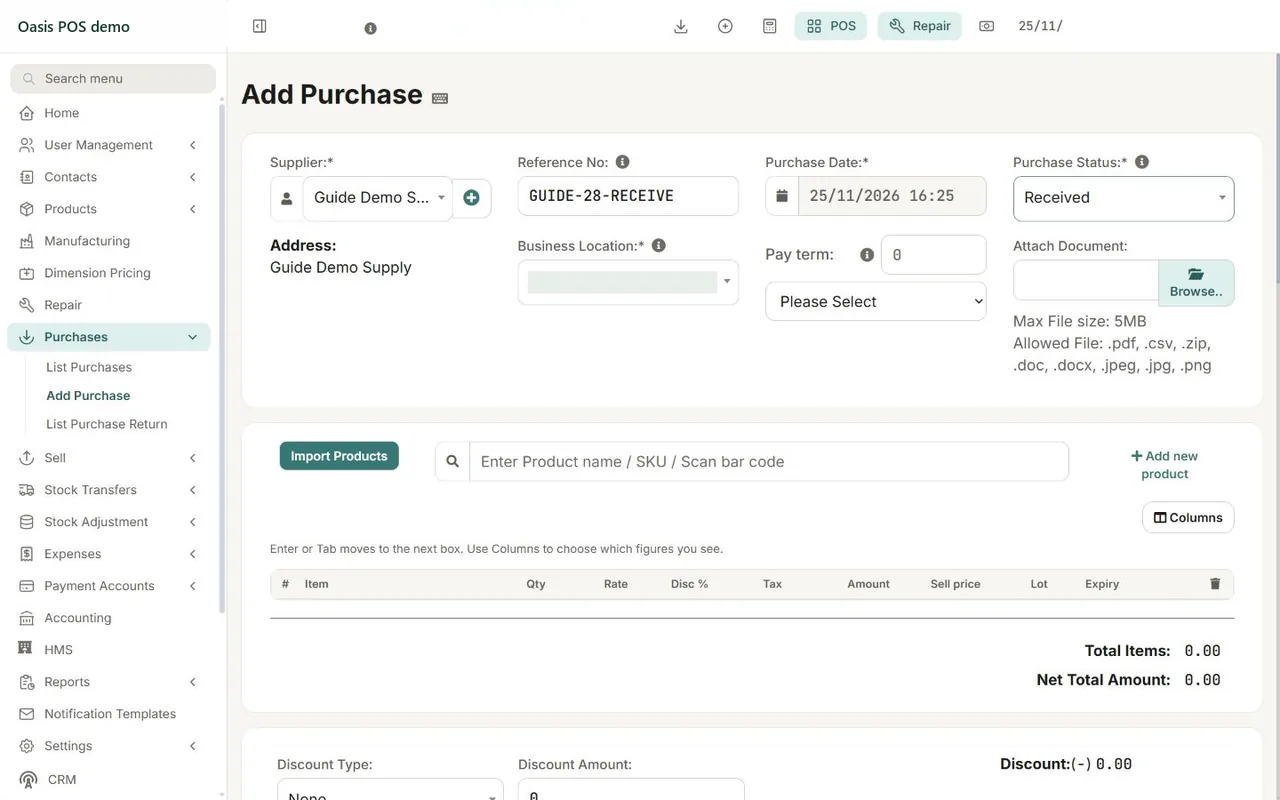
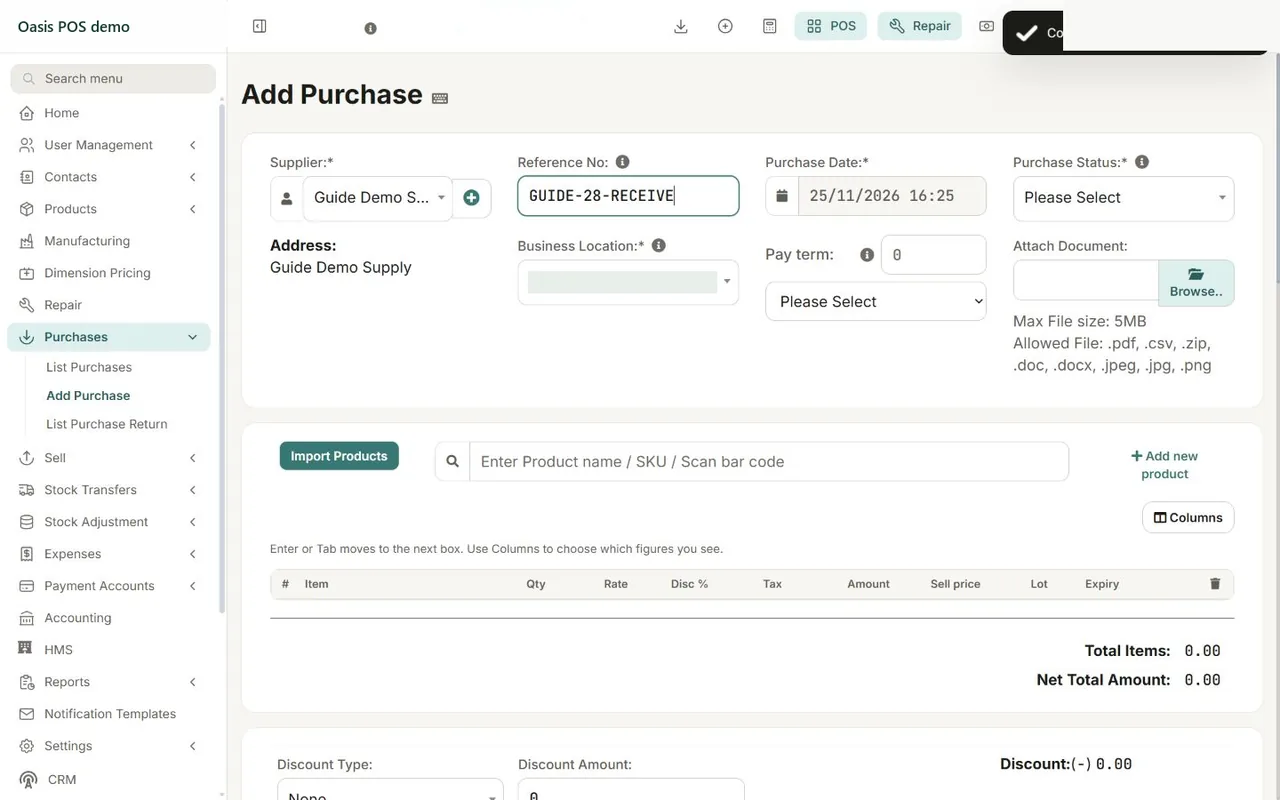
Go to Purchases › Add Purchase. Select the Supplier, enter the supplier’s bill number in Reference No, and set the Purchase Date. Choose the receiving Business Location.
2. Add the items you counted
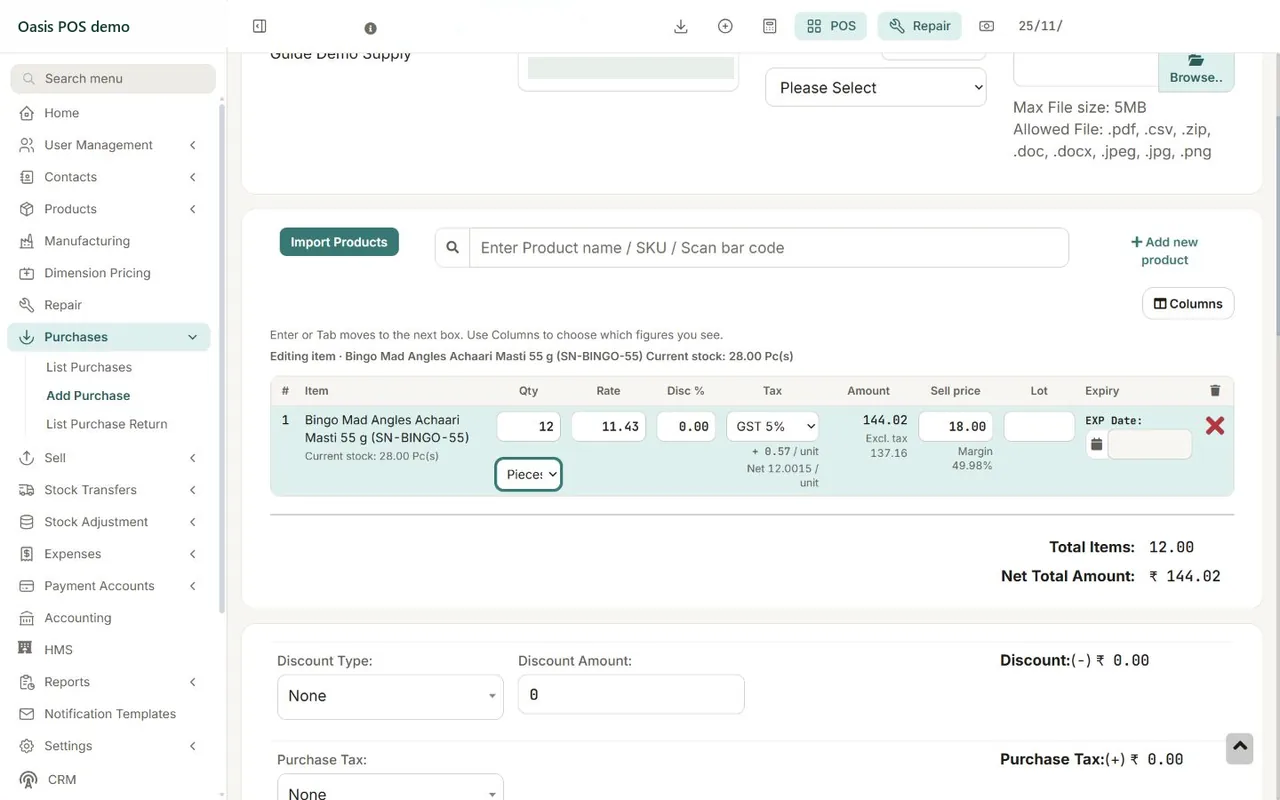
Use Enter Product name / SKU / Scan bar code to find each item. Enter the Purchase Quantity and the purchase cost in the appropriate tax column. Compare the unit on the line with the supplier bill. If the product is tracked by piece, two cartons of six packs each are 12 pieces.
Where lot or expiry tracking is enabled for the product, enter the details shown on the delivered goods. If two batches have different numbers or dates, keep their quantities on separate rows where the form allows it.
3. Record the status and amount actually paid
For stock already delivered, select Received under Purchase Status if the field is available. If your store uses Pending or Ordered, use those statuses before receipt according to your receiving process.
Check the Purchase Total against the supplier bill. If you paid the supplier now, record the actual amount and method under Add payment. Leave the payment amount at zero if nothing was paid. Click Save.
Confirm the stock reached the right branch
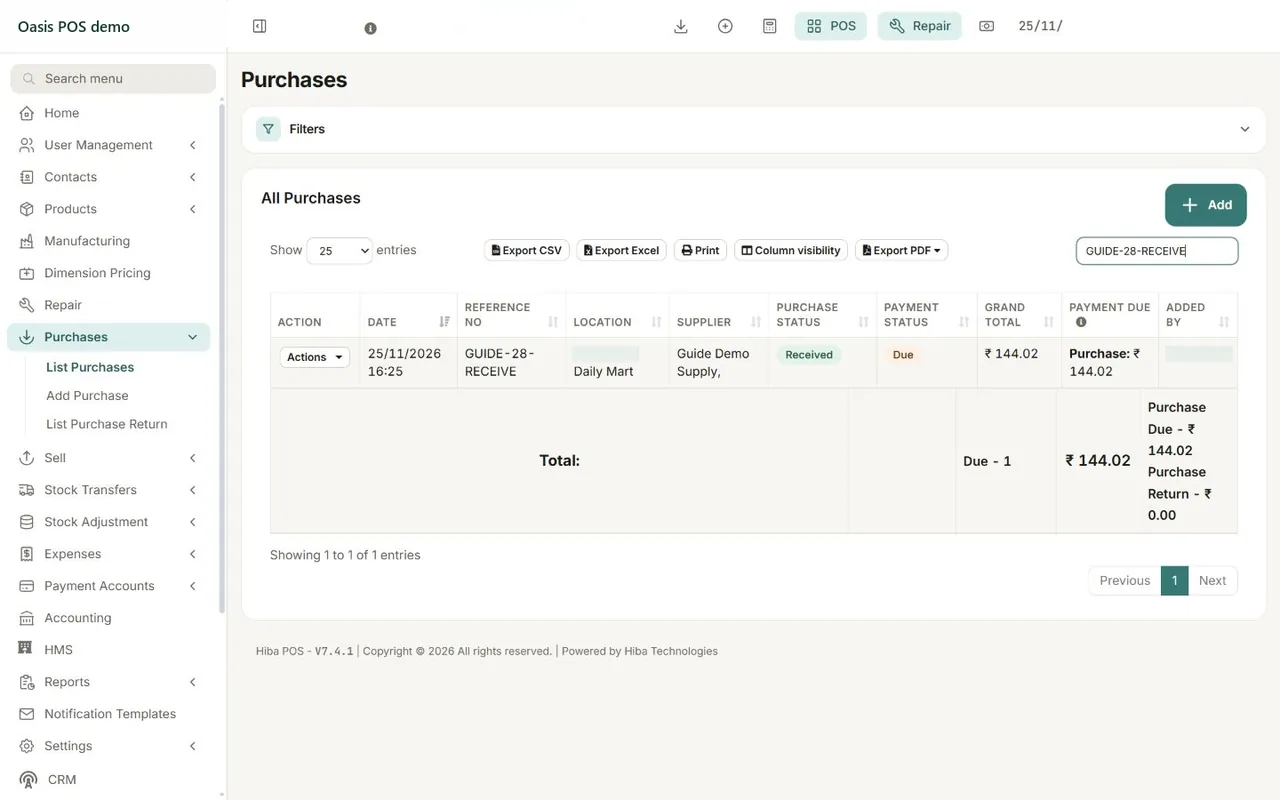
Open Purchases › List Purchases and find the supplier and Reference No. Check the location, Purchase Status and Payment Status. Then find the item in Products › List Products and check its stock for the receiving location. If 10 packs were already on hand and you received 12, expect 22 before any later sales or adjustments.
Frequently asked questions
Why didn’t the stock quantity go up?
Check whether the purchase is Received, whether you are viewing the receiving location and whether Manage Stock? is enabled on the product. If the purchase is still pending or ordered, follow your store’s procedure for recording receipt on the existing purchase.
What if the delivery is short?
Use the actual quantity received and resolve the difference with the supplier. Check the invoice and line totals before saving, especially if the supplier needs to issue a corrected bill.
Will attaching an invoice fill in the lines?
Attach Document stores a copy with the purchase. Enter or review the stock lines in the purchase form before you save.